

Auditing and restructuring our SharePoint document library
We did some housekeeping at the end of last year to audit and rationalise the files in our SharePoint document library. We’ve now come up with a new structure and approach for how we store and maintain project and team artefacts.
Why we audited our document library
We wrapped up a multi-year project in October to create a new central study provision for the University. Before diving into new projects, we wanted to do some team housekeeping.
Namely, we wanted to audit our SharePoint document library to assess what was there, what we wanted to retain and what could be deleted. We’ve had this library since our team was formed in 2019 and had over 6,000 items in it.
We also knew that we needed to restructure it. When our document library was set up, we had no guidelines for how to add artefacts to it. What ended up happening was people took different approaches to adding folders and files.
For example, we had a user research folder that stored subfolders related to user research in various projects. But we also had project folders that had subfolders of user research in it. Auditing was a chance to come up with a proposed structure for how to add and store files going forward and reorganise.
Training to help us plan for a future tagged structure
Our SharePoint experts in the team were keen we move away from a folder-based structure in SharePoint and instead use tagging. Tagging essentially means having a document library where all files are at the top level of the space, but tagged according to certain attributes you choose. You can then find documents by filtering your tags and setting up filtered views to help find what you need more easily.
To get our team more acquainted with the ins and outs of SharePoint and tagging, we did two training courses before auditing:
- SharePoint: Lists and document library management (internal training provided by our Digital Skills team)
- Taxonomy design to power better content (a CPD course provided by ContentEd+)
The SharePoint training taught us the practical skills we needed to work with lists and tagging, while the taxonomy training gave us the theory to help develop a tagging system that would make sense for how our team uses our files.
Figuring out how to audit a document library
The trickiest part of the audit was figuring out how to do it. I’ve planned plenty of website audits as part of content redevelopment projects, but auditing a document library required some extra thought about what we were trying to achieve.
I knew our primary goals were to figure out both:
- what to keep (either because we regularly use it or for historical reasons)
- what we can delete (because it’s redundant, outdated or trivial)
But I also knew to plan for a future tagged structure, we had to get a better sense of the types of documents in our library.
As such, I designed a template for auditing each of our library folders, which included columns for:
- folder or file name and link
- description of the item
- comments describing our assessment of the item
- taxonomy ideas (potential tags we could create)
- year the item was created
- whether the item was still in use (yes or no)
- owner of the item
- recommended action (keep, delete or unsure)
We did not log every single file or folder in our SharePoint. If a folder contained the same type of thing (for example, a folder of drafts) and all had the same action tied to it, we only logged the folder and described what was in it. This saved us time and meant we kept focused on assessing only unique items in our library.
The auditing took my team (three of us) roughly a month, broken down into two blocks of work (called ‘sprints’).
What we found
At the end of each sprint, we had a review meeting with the wider team to share what we came across and summarised our recommendations for each top-level folder.
Through auditing, we discovered our files could be subcategorised into four distinct buckets:
- project artefacts (the vast majority of our files)
- learning resources (like training slides or books in our digital bookshelf)
- team resources (items related to team operations like team meeting minutes and induction documents)
- content operations resources (items related to our regular degree finder service management activities)
Following the last sprint, we ran a workshop to agree how we would move forward and reorganise our document library.
Coming up with new structures for our SharePoint document library
Based on the four buckets we found, we agreed to stop using one single document library and instead create separate ones for those four areas.
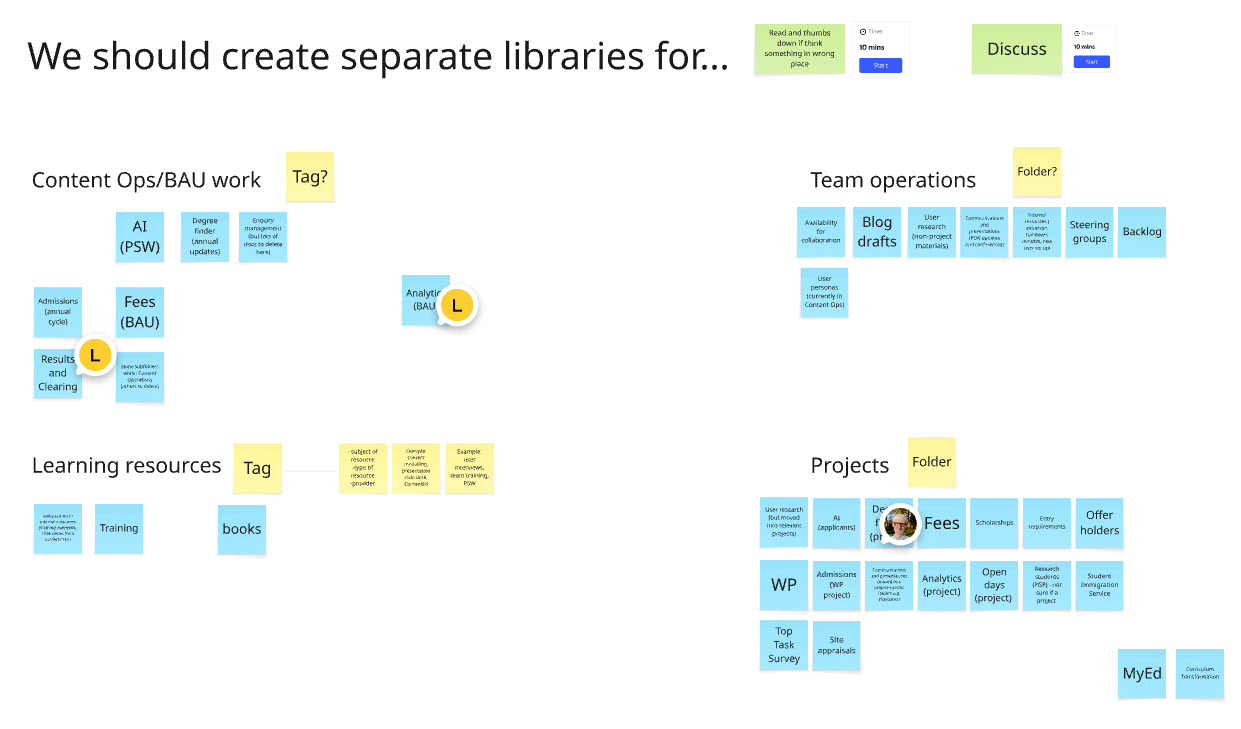
At our team workshop, we mapped where existing top-level folders mapped to the four new libraries we wanted to create.
Within that, we agreed to create tagging structures for the project artefacts and learning resources.
Our learning resources library has tags for:
- subject the resource is about
- type of resource (for example, presentation slide or training)
- provider
To arrive at a tagging structure for projects, at our team workshop, we first looked at:
- the types of artefacts we create in a project (based on our taxonomy ideas in the audit)
- the life cycle of artefacts in a project (what folders were we currently setting up in a project and at what phase of a project)
Through this, we were then able to come up with a set of tags for projects, namely:
- subject
- project name
- phase (such as, discovery or development)
- type (such as, user research or audit)
- sprint number (if relevant)
- audience type
The most challenging of these tags to figure out was type, as our initial list of suggestions had over 30 types, which would be cumbersome to work with.
However, our SharePoint experts in the team (Jen and Carla) were helpful here in pointing out that what we sometimes thought of as a type was actually something you would just make clear in the file name.
For example, we originally had type tag suggestions for ‘consent forms’, ‘incentives’ and ‘recordings’, but Jen pointed out that all those terms would be in a file’s name. Instead, we could apply singular tag like ‘participant management’ to all documents related to people’s participation in our user research activities. This tag could later help us identify items with personal information we’d later need to delete.
Following the workshop, we set up a project document library with the set of tags listed, but only 15 options now for ‘type’.
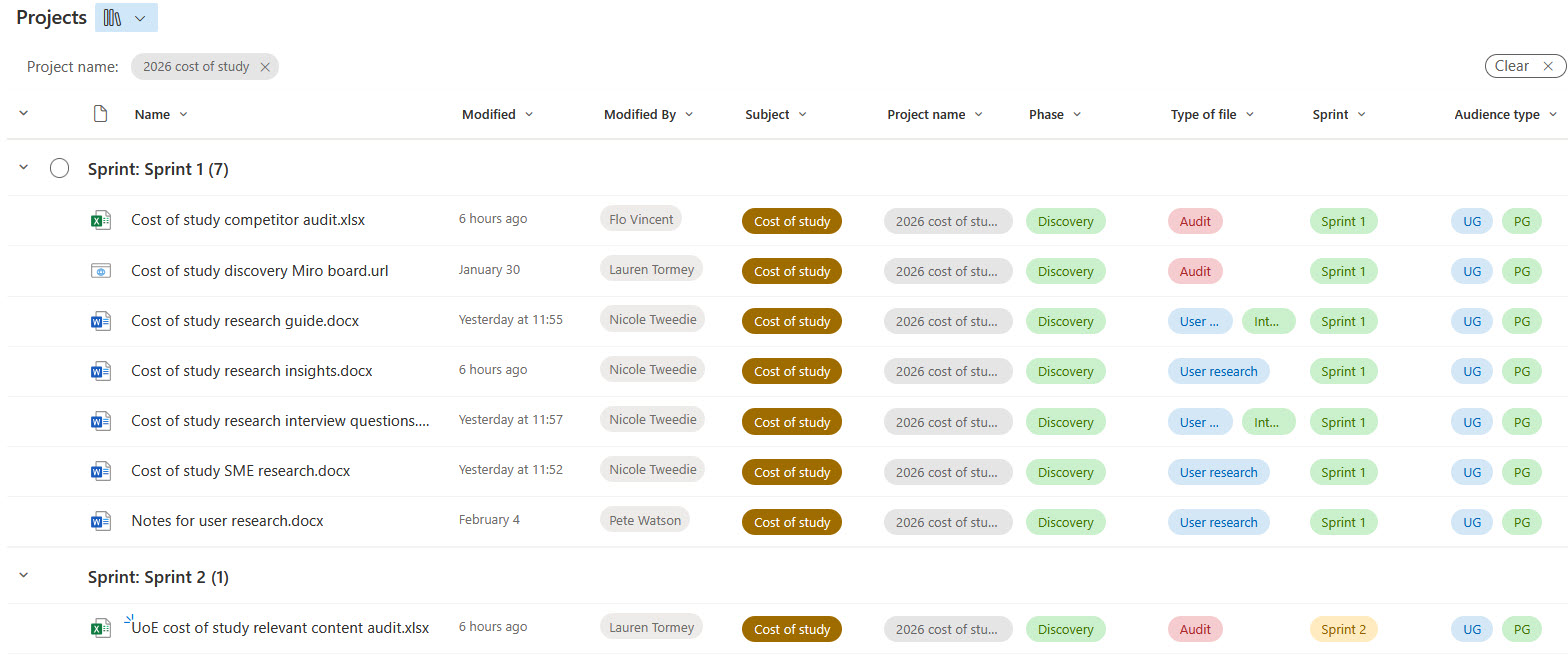
Our new projects document library with tagging. This picture shows a view filtered for a current project we’re working on where documents are arranged by sprint.
Regarding our other two buckets of document types:
- Our team resources files have remained in a folder structure as we do not see a benefit to coming up with a tagging system for these.
- Most content ops resources were out-of-date and had been superseded by documentation we created in team SharePoint sites.
Governance of our new libraries
With our new libraries set up, we want to ensure our wider team is using the tagging systems properly.
It was a lack of governance that led to a massive, incohesive folder structure, so we’re setting clear guidelines this time about how to add documents to the new libraries and how to request changes to tags.
We want to make sure no one is creating new tags on their own and instead puts suggestions forward to the team to discuss first.
Our biggest challenge ahead will be getting used to using the new projects library. With most of the team used to using folders, we now need to get to grips with both tagging documents and locating tagged documents.
We plan to regularly check in as a team to make sure we’re using SharePoint efficiently and can update our documentation as we go with best practice for our document management.
Looking to audit your document library?
If you work at the University of Edinburgh and are looking to do a similar project, I highly recommend the University’s SharePoint lists and ContentEd+’s taxonomy training we used, which you’ll have access to.
Digital Skills programme (look for the course ‘SharePoint: Lists and document library management’)
Get access to ContentEd+ (look for CPD course Taxonomy design to power better content)
I’m also happy to share the spreadsheet we used to audit our files for you to adapt.