Any views expressed within media held on this service are those of the contributors, should not be taken as approved or endorsed by the University, and do not necessarily reflect the views of the University in respect of any particular issue.

How to upload a video with dual feeds to Media Hopper Create

PDFPrint

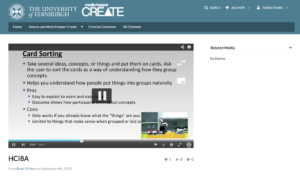
If you need to upload a video with two feeds (e.g. lecture slides and lecturer cam) to Media Hopper Create, this is possible through https://videomigrator.is.ed.ac.uk. When a video has dual feeds on Media Hopper Create, the user has full control over the size and location of both feeds while they watch the video. This is very useful for dynamic lecture videos when the focus changes between the two feeds and ensures the user can move the secondary feed out of the way of the main feed when needed. To upload a dual feed video:

  1. Log in to the media migrator and choose the primary video file (the video feed that will be larger by default).
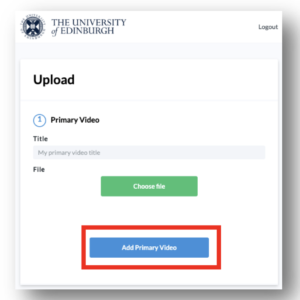
  2. Create a title for this file (this title will be the one that appears for both feeds) and upload the primary video file.
  3. After the primary video file has completed upload you will receive a success message.
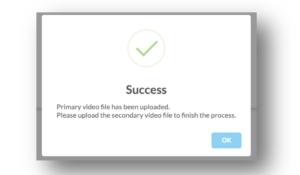
  4. You can now repeat this process to upload the second feed (the smaller feed that will hover on top).
  5. The second feed also requires a title but this will not appear on the final video page.
  6. The video with dual feeds will appear on your ‘My Media’ section on Media Hopper Create where you can then edit the video details and publish it.
Share

Leave a Reply

Your email address will not be published. Required fields are marked *

css.php

Report this page

To report inappropriate content on this page, please use the form below. Upon receiving your report, we will be in touch as per the Take Down Policy of the service.

Please note that personal data collected through this form is used and stored for the purposes of processing this report and communication with you.

If you are unable to report a concern about content via this form please contact the Service Owner.

Please enter an email address you wish to be contacted on. Please describe the unacceptable content in sufficient detail to allow us to locate it, and why you consider it to be unacceptable.
By submitting this report, you accept that it is accurate and that fraudulent or nuisance complaints may result in action by the University.

  Cancel