

Details April 2026
- Automations
- Review both sets of Discussion due dates across multiple views in Learn
- Handle images as thumbnail links in Announcement emails
- Add Substantive and Non‑substantive Content labels in instructor discussion analysis
- Specify assignment submission type
- Improvements to multiple choice and multiple answer questions
- Adjust grades for individual student attempts in group submissions
- Student names display in chosen sort order in Flexible Grading
- Known Issues
Automations
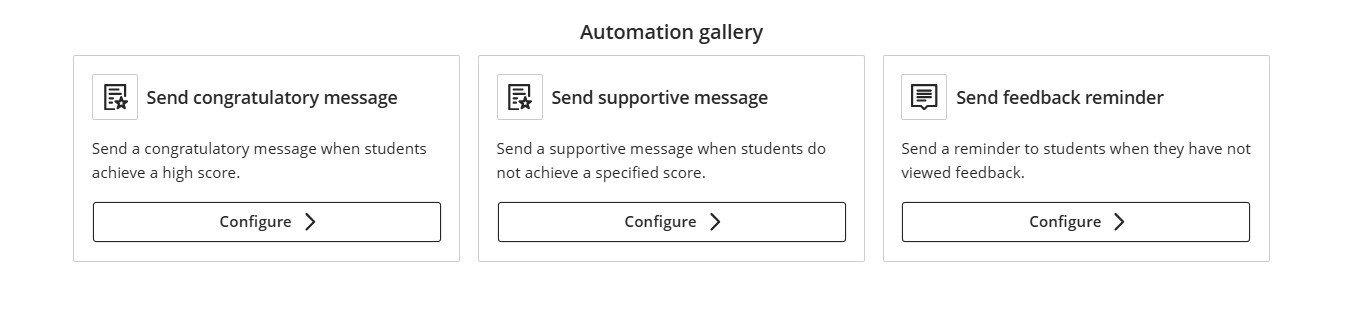
This feature allows instructors to create automations that send messages to students via their Learn course. These automations help instructors deliver timely, personalised feedback throughout the course, boosting student engagement and saving time. The types of messages that can be sent are:
- Congratulatory/supportive messages – Instructors can write a congratulatory or supportive message to students. This is done by setting custom rules at a course level, this can be for a particular assignment or all gradable items based on the students attained grade. Once grades and feedback have been posted, students that satisfy the criterion will receive the automated message.
- Feedback reminders – Instructors can set up feedback reminders and send a message to students within your course that have not viewed their feedback on a Learn assignment after a set number of days.
Review both sets of Discussion due dates across multiple views in Learn
When instructors create a discussion with two due dates and participation requirements, both sets of requirements appear on the Course Content page, Discussion pages, the Gradebook student and instructor views, and the instructor’s Discussion analysis panel. Students can track expectations throughout the workflow without navigating back to the discussion itself.

- On the Course Content and Discussion pages, both due dates and their requirements appear together for quick reference.
- In the Gradebook student view, both dates appear.
- Instructors also get a new Due Dates and Requirements section in the grading view for an individual student. This section shows both due dates and the student’s progress toward each requirement.
Handle images as thumbnail links in Announcement emails
Announcement emails now show images as thumbnail links instead of long URLs. This update gives users a clearer preview of announcement content and provides a direct path back to the full announcement in Learn. When users select a thumbnail, the system opens the original announcement so they can read it with full context.

Add Substantive and Non‑substantive Content labels in instructor discussion analysis
Student posts and replies now have Substantive Content and Non-substantive Content labels in the instructor discussion analysis page. The labels clarify the meaning of the green and red highlighted text indicators in student responses and improve the grading process for instructors.

Specify assignment submission type
New submission options have been added for instructors to specify the type of submission they expect from students, giving them a choice from file upload or text entry.
- File upload
- Text entry
By default, File upload and Text entry are both selected.
The selected submission type is visible in assignment settings and student‑facing details. Instructors can change the selected submission type until students have started submitting attempts.
Image 1: Instructors can choose one or more submission types when configuring an assignment.

Students are informed of the expected submission type and see a submission workflow optimised for that format.
- File submissions display a dedicated file drop zone where students can upload, preview (when supported), and remove files.
- Text submissions provide a streamlined rich text editor experience without a general file attachment option and include access to the Content Market for supported tools.
Image 2: Students have a submission workflow optimised for the selected submission type.

Improvements to multiple choice and multiple answer questions
- For the multiple choice question, the default number of answer options has been modified so a student can select from 4 to 1.
- When creating or editing a multiple choice or multiple answer question, instructors can change the number of answer options that a student can select.
- Multiple choice answer options alphabetical labels (A, B, C, D) have also been restored.
Adjust grades for individual student attempts in group submissions
With Flexible Grading an instructor can now adjust attempt grades for individual students within a group submission. This update ensures that grades for group submissions can accurately reflect each student’s individual contribution, even when work is submitted as a single group attempt.
Instructors can override a group attempt score for individual group members directly from the grading interface. The interface clearly indicates when grades differ across group members, and adjustments can be removed by restoring a student’s grade to match the group attempt score.
Image 1: Instructors can adjust grades for individual students within a group submission.

Student names display in chosen sort order in Flexible Grading
Known Issues
This release will look to fix a couple of known issues. The first relates to rubrics using points, where the total points possible are sometimes rounded inconsistently, depending on the order of the criterion values. This has now been resolved, and total rubric points should calculate consistently regardless of the order in which criterion values are entered.
The second issue relates to group and individual feedback from group assignments. When a user views feedback from the Gradebook, only their individual feedback would show with the group’s feedback not displaying. This release will fix that, so that individual and group feedback will both correctly display for users when viewing their group’s attempt.

Comments are closed
Comments to this thread have been closed by the post author or by an administrator.