Working hand in hand

A lot of the time IT services are supporting users – that is, students and teaching staff – or work quietly in the background to assure systems and infrastructure are in good shape and fit for purpose. In my own role I rarely have an opportunity to see what happens “on the ground”, in the physical teaching environments. However, recently I was attending a staff training event for Data Protection Champions, and it ended up being an exciting little showcase of how our services work together to make learning and teaching happen. Not just for students 🙂

What are Data Protection Champions? These are a group of staff members who commit to staying up to date on current developments across the university on matters intersecting with Data Protection and to help keep information otherwise available on the web current in discussions and work locally. The Community Meetings help to exchange knowledge and ask questions to understand in better detail what processes and procedures are designed to do and to disambiguate the legalese that necessarily accompanies legal and compliance rules and regulations.

In other words, understanding the details is important, and summarising this “second hand” is not always easy. This prompted some champions to reach out to the organiser asking if the event could be recorded.

This was not a Teams meeting. But, it was set at a lecture theatre with Lecture recording facilities. So after a little consideration of alternatives (recording in segments on a mobile phone? recording via Kaltura video recorder from a laptop?) we set to work out what might need to happen to make use of the lecture recording equipment.

  • Sound check – oh my. Somehow feedback reverberating in stereo through the theatre makes for a great alarm clock, but it transpired quite quickly that we were in need of support. A colleague from Digital Spaces Tech attended within minutes – and some troubleshooting later had all the microphones operating normally. Sigh of relief – we can all hear and know this will be captured in the recording.
  • Recording – typically recordings are linked to course delivery in our VLE, Learn. And timetabling allows for lectures to be added to the courses automatically. When requesting an ad-hoc recording, this is available to instructors; or can be supported from the Media Service team with a little notice. In our case, notice was very limited, and the support from the service team was invaluable. The lights of the recording equipment turned red – on time for the meeting to start.
  • Processing – with the event being a full morning, including a break for coffee and networking, the recording took some time to process on the system. With help from the service team, this time duly recorded using our ticketing system Unidesk, the recording was modified to exclude the break to make this more convenient for champions to review once shared.

Since the event was not associated with a course or programme, and the default of our lecture recordings setup via the VLE did not apply, sharing recordings is not automatic. The system is designed to safeguard teaching activities and keep permissions for processing and sharing details in line with the terms and conditions of service. Data Protection compliance at its best. Staff training, still falls within the remit of teaching, but staff training is not hosted on our VLE Learn, again, in order to comply with the terms and conditions of service for the VLE. On guidance from the Media Service team we requested for the migration of the video to our other media channel, Media Hopper Create. With this being the first interaction on the service the help and support with this process was incredibly appreciated by the organiser and all involved in the event.

  • Migrating – as part of this whole process, I discovered a whole new set of environments that can be logged into, alas, because my account is linked to a playground account, and I was not the owner of the video recording, we took up the kind offer of support from the Media Service team who brought the video into Media Hopper Create, which offers captioning and wider sharing permissions.
  • Sharing – as with many of our services, the ability to secure content is shared with the appropriate user groups is really important. Materials can be set to only exist for the video owner (private), made accessible only to users who have been given the link (unlisted) or be made public to all users. In addition, licensing selections assure that users are informed of what is permissible with regards to use of the content and copyright.

The support and efforts across the different teams was a really good reminder of why working in ISG / LTW / DLAM is such a rewarding experience. Sometimes we end up being in the role of our own users, and colleagues come to our rescue and support to make the most of the teaching and training that keeps our service provisions compliant and up to date.


What’s in a measure? Considerations on Anthology Ally

Let me take a moment to share my thoughts around one of our newer services with Learning, Teaching and Web: Anthology Ally. Accessibility is fast becoming one of my favourite topics working within DLAM. A Humanities graduate myself, maybe the link between Hermeneutics (Interpretation theory) and digital transformations in accessible design play a part. Whilst I used to be primarily concerned about the meaning behind the words, I now find myself deeply fascinated by the (digital) transactions that take place to transmit and present information, and the tools it takes to make this happen!

Digital accessibility refers to digital content that has been reviewed and tested to be accessible to the widest possible audience and be free from any avoidable access restrictions when using assistive technologies. In the broad landscape of software, programmes and platforms, readability and interoperability are crucial if we are to enable our users to interact with out content in an output format suited to their needs. Thus, for accessibility to translate to digital media educational design (content focussed), interoperability, and user navigation and software availability all play a part. To achieve this, the ability to review and revise core information – such as file properties, logical input and design elements – this data must be clearly readable to a variety of software before the output can be guaranteed. Who else remembers the wonders of opening a foreign file extension with Word and being faced with code rendered in Webdings? 

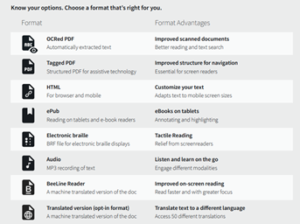
Our ability to alter and edit our content and render it accessible at all levels, is critical. Anthology Ally offers us a window into the system level dialogue of our digital learning environment and the digital media we populate our classrooms with. Ally is a software integration on our primary VLE that scans contents for digital accessibility, its meta text, settings and requirements hidden behind the on-the-face output. It allows the users to identify accessibility issues at software level and supports some measures of fixing these; as well as enabling the conversion of files into alternative formats. Alternative formats can make teaching resources more adaptable to the diverse needs and wants of our students. Changing file type may help in presenting a file more adaptive to screen size; opting for a different display modus can support reading; access to audio can allow you to listen back on materials whilst working out, running chores or on the commute… with a diverse student body, we have the opportunity to fit all our teaching courses into a more flexible learning style. An improved digital experience supports all our learners, and having a chance to gauge better what poses a hindrance to assistive technology will make an impact to our users!

Image title: Know your options. Chose a format that's right for you. List of alternative formats and their advantages shows 8 items. Item 1 Format: OCRed PDF for automatically extracted text. Advantage: Improved scanned documents for better reading and text search. Item 2 Format: Tagged PDF for a structured PDF for assistive technology. Advantage: Improved structure for navigation, essential for screen readers. Item 3 Format: HTML for browser and mobile. Advantage: Customize your text with a file that adapts text to mobile screen sizes. Item 4 Format: ePub for reading on tablets and e-book readers. Advantage: usable for ebooks on tablets to annotate and highlight. Item 5 Format: Electronic braille in BRF file format. Advantage: supports tactile reading and offers relief from screenreaders. Item 6 Format: Audio as MP3 recording of text. Advantage: Listen and learn on the go by engaging different modalities. Item 7 Format: BeeLine Reader. This creates a machine translated version of the document. Advantage: Improved on-screen reading to read faster and with greater focus. Item 8 Format: Translated version (this is an opt-in product) offering a machine translated version of the document. Advantage: Translates text to one of 50 different languages. Speak to Information Services if you are interested in this version.
Table of available alternative formats

Here at DLAM testing out our service solutions to assure that they work as intended and integrate seamlessly (we can but try!) into our existing service environment is a wonderful part of the job. The Web Content Accessibility Guidelines (WCAG) 2.1 (version 2.2 has been launched in October) offer a detailed list of criteria when reviewing all our websites and applications for legal compliance under the Equality Act (2010) and The Equality Act 2010 (Specific Duties) (Scotland) Regulations 2012 (https://www.ed.ac.uk/about/website/accessibility/guidelines-policy-legislation). One of the core efforts in the standard is that organisations have to lay bare how they identified and thought about accessibility for their products and services, and where possible, mitigated any avoidable shortcomings. In broad terms, our applications are challenged on three aspects: audio, visual and navigation / workflow; the touch points of our digital environment. It is a “dimension of interoperability” to assess whether “assistive technologies [are] working predictably with different combinations of browsers, mobile operating systems, and devices“ (The Next Frontier – Expanding the Definition of Accessibility | SpringerLink).  When testing for Ally, a core challenge for me was using assistive technology, often for the first time, and to interpret the behaviour. Whilst I was reasonably familiar with Ease of Access settings for my PC and browser, other more specialist tools I found hard to judge. What if my lack of familiarity with assistive technology in the test makes for a poor result due to difficulties with the assistive tool rather than the target interface? It is the hard to judge places that lead us to use tools to scan and evaluate what meets compliance criteria and helps us to correlate our own experience with the data we interact with.

To guide instructors about digital accessibility, Ally produces a score. It is meant as a guide to how clean a file is in digital terms, i.e. how successful it will be in converting to an alternative file format or being negotiated by any common assistive technology tool. So taking a moment to demystify the scoring for a moment should clear our view to how Ally supports our wider mission to produce accessible learning and teaching materials.

Fuel gauge symbol pictured in red pointing to low level to denote 0-33% success rate Low (0-33%): Needs help! There are severe accessibility issues.

Fuel gauge symbol pictured in amber pointing to mid-level to denote 34-66% success rate Medium (34-66%): A little better. The file is somewhat accessible and needs improvement.

Fuel gauge symbol pictured in light green pointing to high level to denote 67-99% success rate High (67-99%): Almost there. The file is accessible but more improvements are possible.

Fuel gauge symbol pictured in dark green pointing to full tank level to denote 100% success rate Perfect (100%): Perfect! Ally didn’t identify any accessibility issues but further improvements may still be possible.

Now, a scan for alternative text, in spite of the potential for AI to play a part here in future, cannot infer the context for the teaching resource and the focus the image might have in the lesson plan in the assessment of the appropriateness of ALT text. Ally is first and foremost an editing tool for the instructor, and a convenient conversion tool for the students. Accessibility needs remain to be assessed at the human level. So what do we do to assure we keep the service on track?

  • Training; we must foster a keen awareness of what constitute accessible design in our digital service landscape
  • Testing; we must test out applications and websites to identify and mitigate challenges in accessibility
  • Research; we must continue to learn about digital trends, possible new solutions and developments in assistive technology, and accessible design
  • Feedback; we must actively listen to user feedback to satisfy ourselves that we are not merely offering a legally compliant but a practical and usable service solution and that users understand the benefits and limits of the tools we provide; evaluating our service data can support this conversation (and I hope to go into more detail about this in my next blog).

What I have found in the course of the launch of Ally is that users, academics and technologists alike, need to know not only what the barriers of student users may be, and what assistive technologies might be employed, but how to make the leap between the informational content, the educational experience or activities, and the digital needs of the programmes to make it operate for other software.  Whilst it is important to point out that accessibility needs are as diverse as the subjects we offer in teaching, focused on honing different skills and abilities, the same goes for assistive technologies. There will never be a one-size-fits-all. And that is a positive thing. It curtails our tendency to reduce accessibility to a tick box exercise. Checking for accessibility remains at all times an iterative process. With Ally, we have one more tool to help us orientate ourselves amidst this ever evolving digital landscape.